Tutorial · 2 minAI on WhatsApp Web: Claude and ChatGPT

How to connect WhatsApp Web to Claude and ChatGPT (MCP)

How to connect your WhatsApp Web to Claude, ChatGPT or another AI assistant, with Kaption's MCP. Ask for a summary of the day, find what was agreed, create reminders and schedule messages.

In this video

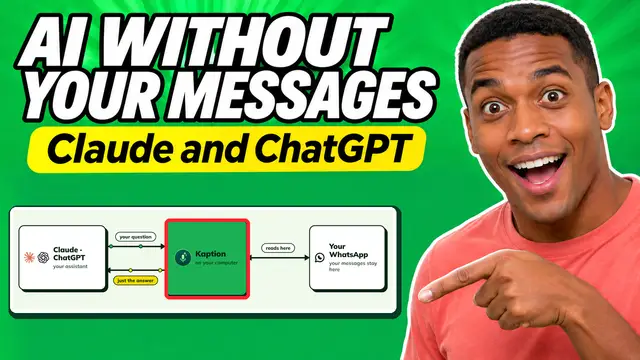
Open AI Connectors in Kaption, add an assistant (Claude, ChatGPT or another app) and approve it once, ask for a summary of the day, find what was agreed, create reminders and schedule messages, control message sending (with safe limits) and disconnect anytime. Kaption needs to be open in WhatsApp Web or in the app.

Step by step

  1. 01

    Connect an assistant

    First, in Kaption: open AI Connectors, and click Add an assistant. Pick yours, for example Claude. Kaption confirms it's you on WhatsApp, and shows a code. Click Continue to Claude. A Kaption page opens, with the connector address and three steps.
  2. 02

    Connect in Claude

    In Claude, under Connectors, click Add, then Add custom connector. Name it Kaption, paste the address, and click Add. Then click Connect. Kaption's sign-in page opens. It already knows it's you: no number to type.

  3. 03

    Connect in ChatGPT

    In ChatGPT, it's similar. In Settings, Apps and Connectors, turn on developer mode, and click Create. Name it Kaption, paste the same address, confirm you trust the app, and click Create. Sign in on Kaption's page, and you're done.

  4. 04

    Summarize the day's chats / Find what was agreed / Reminders and scheduled messages

    Done! Now just ask. For example: summarize today's chats, and tell me what's still pending. The assistant reads your chats through Kaption, and answers in seconds. You can also search: what did Ricardo agree about the delivery?

  5. 05

    Sending messages / Disconnecting and privacy

    Assistants can also send messages from your computer, with safe limits. If you prefer, turn that off anytime, in the AI Connectors window. You can disconnect an assistant at any time.

Show the full transcript

Transcript

Introduction (0:00)

What if you could ask Claude or ChatGPT: summarize my WhatsApp Web chats from today? With Kaption, you can. In this tutorial, you'll connect your WhatsApp Web to an AI assistant, like Claude or ChatGPT, with Kaption's M C P.

Connect an assistant (0:15)

First, in Kaption: open AI Connectors, and click Add an assistant. Pick yours, for example Claude. Kaption confirms it's you on WhatsApp, and shows a code. Click Continue to Claude. A Kaption page opens, with the connector address and three steps. Click Copy the address and open Claude.

Connect in Claude (0:34)

In Claude, under Connectors, click Add, then Add custom connector. Name it Kaption, paste the address, and click Add. Then click Connect. Kaption's sign-in page opens. It already knows it's you: no number to type. Choose how long to stay connected, and click Connect. Done: Kaption shows as connected. Now, in a chat, click the plus, then Connectors, and turn Kaption on.

Connect in ChatGPT (0:58)

In ChatGPT, it's similar. In Settings, Apps and Connectors, turn on developer mode, and click Create. Name it Kaption, paste the same address, confirm you trust the app, and click Create. Sign in on Kaption's page, and you're done.

Summarize the day's chats / Find what was agreed / Reminders and scheduled messages (1:12)

Done! Now just ask. For example: summarize today's chats, and tell me what's still pending. The assistant reads your chats through Kaption, and answers in seconds. You can also search: what did Ricardo agree about the delivery? It finds the right chat, and shows what was said. And get organized: remind me to confirm the order tomorrow at ten. Or: schedule a message to Ricardo for Monday morning.

Sending messages / Disconnecting and privacy / Plans (1:39)

Assistants can also send messages from your computer, with safe limits. If you prefer, turn that off anytime, in the AI Connectors window. You can disconnect an assistant at any time. And Kaption needs to be open, in WhatsApp Web or in the app, for the assistant to reach your WhatsApp. M C P is on every Kaption plan. Usage limits are on the pricing page.

Wrap-up (2:03)

That's it! Install Kaption from the link in the description, and talk to your WhatsApp Web through your AI assistant. If this video helped, subscribe to the channel.

Try it on your WhatsApp

Kaption is free to install. Plans and limits are on the pricing page. See pricing

See the feature page →
Transcribe one audio now