How to Install a WhatsApp Web Extension on Chrome or Edge
Add a WhatsApp Web extension to Chrome or Edge in three clicks, see which browsers support it, and learn what it can access. Free extension included.
Kaption AI
Installing a WhatsApp Web extension takes less than a minute: you open the extension's page in your browser's store, click Add to Chrome (or Add to Edge), confirm in the small window that pops up, and reload web.whatsapp.com. That's it — the new buttons show up right inside your chats, no sketchy plugin, no program to download, and nothing to change on your phone.
The part almost nobody explains is the second half of the question: what does that extension get to see inside your WhatsApp, which browsers it actually works on (Chrome and Edge, yes; Firefox, Opera and Safari have their own separate stores), and what to do when it simply doesn't show up. That's what this guide covers, using Kaption's WhatsApp Web extension as the working example.
Updated September 2026
Prefer not to install an extension?Kaption for Mac and Windows runs WhatsApp Web in its own app, with every Kaption tool built in.
What a WhatsApp Web extension is — and what it isn't
An extension is a small program that runs inside the browser and adds functionality to specific pages. On WhatsApp Web, it draws new buttons and panels on top of the interface WhatsApp already delivers: a transcribe button under every voice message, a menu to schedule a message, a mode that blurs your chats when someone walks by your desk.
It's worth being clear about what it isn't. It's not a WhatsApp app, it's not an alternative client, and it's not an integration with the official WhatsApp Business API. The extension doesn't connect your account to anything: it works on the tab you already have open and signed in. If you close WhatsApp Web, it has nothing to do.
How to install it on Google Chrome
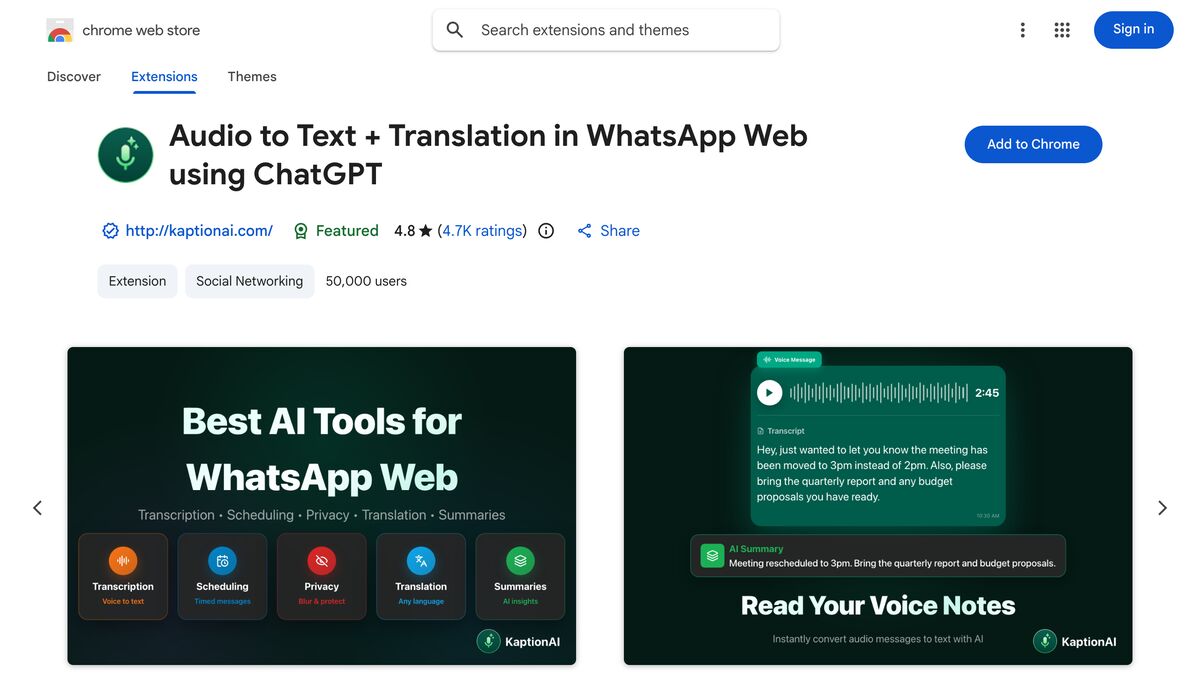
Open the extension's page in the Chrome Web Store. For Kaption AI, that's this store listing.
The store listing: rating, number of users and the install button, all on the same screen.
Click Add to Chrome.
The blue Add to Chrome button sits at the top right of the listing.
Confirm Add extension in the window your browser shows. The download takes a few seconds and there's nothing to configure.
Open web.whatsapp.com and reload the page. The extension already shows up in your chats.
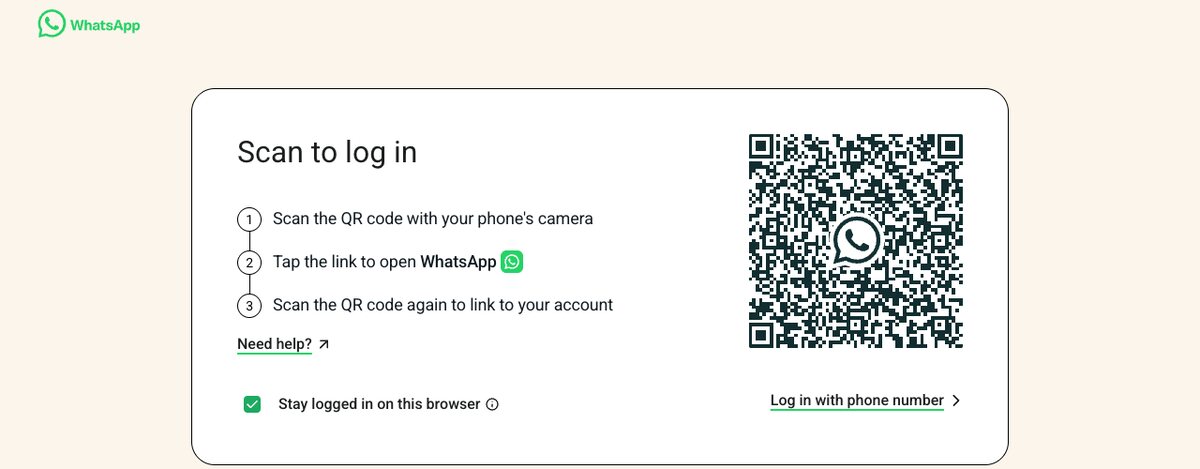
If the tab is not signed in yet, WhatsApp Web opens on this QR screen — scan it from your phone, under Linked devices.
One detail that saves headaches: always install from the official store. Loose .crx files, tutorials that ask you to turn on "developer mode," and packages sent over WhatsApp itself skip the store's review — and that's the classic path for a malicious extension.
How to install it on Microsoft Edge
Edge has its own store, Microsoft Edge Add-ons, and the process is identical:
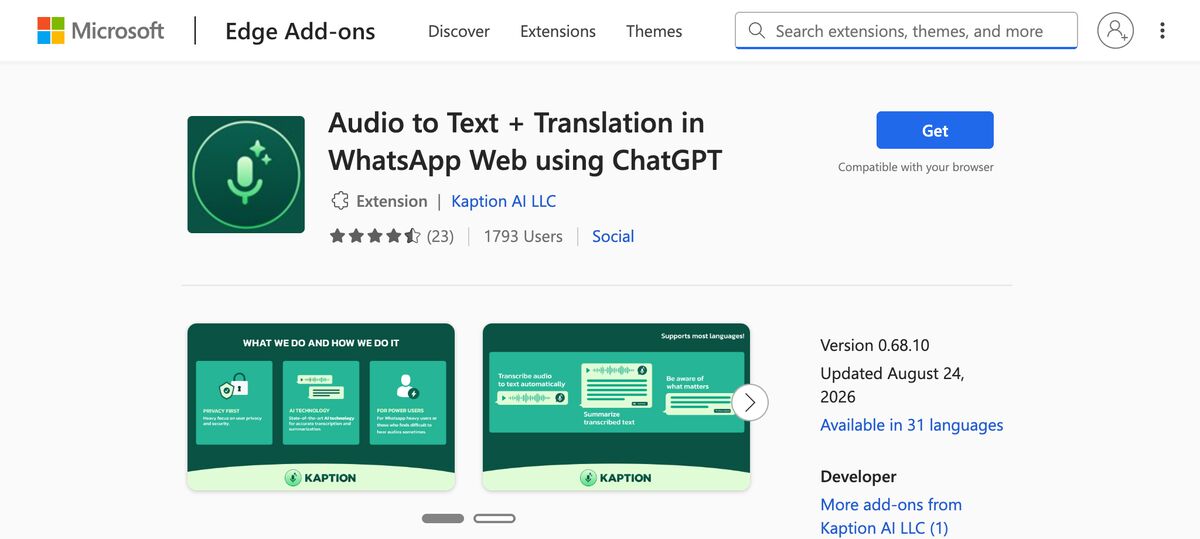
Open the extension's page in the Edge store — Kaption AI's is here.
In the Edge store the button says Get; everything else works the same way.
Click Get and confirm Add extension.
Open web.whatsapp.com and reload.
Edge can also install extensions from the Chrome Web Store: when you open the Chrome store in Edge, the browser shows a warning to "Allow extensions from other stores." It works, but when an extension exists in both stores, install it from Edge's own store instead — updates arrive through the right channel that way.
Which browsers it works on
WhatsApp Web itself opens in any desktop browser. What changes is each browser's extension ecosystem:
Browser
WhatsApp Web extensions
Note
Google Chrome
Yes
Chrome Web Store, the market standard
Microsoft Edge
Yes
Has its own store; also accepts the Chrome Web Store
Other Chromium browsers (Brave, Vivaldi)
Usually yes
Install from the Chrome Web Store, without a guarantee from the developer
Mozilla Firefox
Different platform
Its own add-ons store; Kaption has no version published there
Opera
Its own store
Chromium-based, but with a separate catalog
Safari
Only through the App Store
Extensions have to be distributed by Apple
Phone (Android and iPhone)
No
A phone browser doesn't run desktop extensions
In other words: if you use Firefox or Safari and want extra features on WhatsApp Web, the workaround is keeping Chrome or Edge installed just for that. And on a phone, extensions don't exist at all — the app is the only path there.
What the extension can access — and what it can't
This is where it's worth being precise, since the topic tends to generate more rumor than information. A WhatsApp Web extension runs in the context of the WhatsApp page: it sees what's on screen and in the session open in that tab. It doesn't see your other tabs, doesn't access files on your computer, and doesn't reach into WhatsApp on your phone.
In Kaption's case, the privacy policy is specific about what happens to that content:
The extension works only on WhatsApp Web and acts on the conversations you already have open there.
Your history is kept in encrypted storage on your own device, inside the browser — no message content is stored on Kaption's servers.
Audio you choose to transcribe is sent for processing and discarded as soon as the text comes back.
Your conversations are never used to train AI models, and are never sold or licensed.
You can export or delete your local data anytime, from inside the product.
That's the kind of answer you should look for in any extension before installing it — if the store page and the privacy policy don't answer this directly, treat it as a yellow flag. It's worth reading 5 red flags to check in a WhatsApp Chrome extension before installing the next one.
When the extension doesn't show up on WhatsApp Web
Installed it and nothing changed on screen? Go through this list, in order:
Reload the WhatsApp Web tab. The extension only loads into pages opened after installation. If it was already open, hit F5.
Confirm the address. It has to be web.whatsapp.com. WhatsApp's desktop app (the program installed on Windows or Mac) is not a browser and doesn't accept extensions.
Check that the extension is turned on. At chrome://extensions (or edge://extensions), confirm its toggle is switched on.
Check whether you're in an incognito window. By default, extensions are turned off in incognito mode; you have to allow it explicitly in the extension's settings.
Check for another extension fighting over the same screen. Two extensions that draw buttons on WhatsApp Web can cancel each other out. Disable the others temporarily to find out.
Update your browser. Very old versions of Chrome or Edge stop supporting newer extensions.
If nothing fixes it, remove the extension and reinstall it from the store. That's faster than troubleshooting further.
How to pin, disable or remove it
To keep the extension within easy reach, click the puzzle-piece icon in your browser's toolbar and the pin next to its name. Its icon then stays fixed on the toolbar, and that's where you open its settings.
To disable it temporarily, go to chrome://extensions (or edge://extensions) and switch its toggle off — it disappears from WhatsApp Web without being uninstalled. To remove it for good, right-click its icon in the toolbar and choose Remove from Chrome / Remove from Edge, or use the "Remove" button on the same extensions page. For tools that store data in the browser, removing the extension also deletes that local storage — export whatever you want to keep first.
Frequently asked questions
Does a WhatsApp Web extension work on Firefox?
Firefox uses a different add-ons platform from Chrome's, with its own store. Add-ons for WhatsApp Web do exist there, but each developer chooses where to publish — Kaption, for example, is on the Chrome Web Store and the Edge store, with no Firefox version. People who use Firefox as their main browser usually keep Chrome or Edge open just for WhatsApp Web.
I installed it and the extension isn't working. What now?
In most cases, the fix is simply reloading the web.whatsapp.com tab after installing. If reloading doesn't help, check that the extension is turned on in your browser's extensions page, that you're not in an incognito window, and that another extension isn't competing for the same screen. Reinstalling from the official store is usually the final fix.
Does a WhatsApp Web extension work on a phone?
No. Phone browsers don't run desktop extensions, and WhatsApp Web on a phone doesn't make much sense anyway — the native app is already right there. If the goal is reading audio as text on your phone, the path is native WhatsApp transcription or a dedicated app, not an extension.
Can an extension get my number blocked?
The risk exists and depends on what the tool does. Bulk-messaging and aggressive automation extensions are the ones that expose a number the most: WhatsApp can suspend the account, block the number or restrict features. Tools that only read, transcribe, organize or schedule messages one at a time are designed to minimize that risk — but no extension eliminates it completely, because the rules belong to WhatsApp.
Do I have to pay to use a WhatsApp Web extension?
Depends on the extension. Installing Kaption AI is free and it transcribes audio right away, with no credit card. The optional Basic and Pro plans unlock unlimited transcriptions, unlimited translation sessions, smart transcription and more scheduled messages. Other extensions follow different models — the store page tells you when there are in-app purchases.